Options
Upload your photo
JPG · PNG · WebP · HEIC — up to 25 MB
Output resolution
If processing fails, your credits are refunded automatically.
Brushing strategies for clean removals
There is nothing to type: the result depends on how you paint. These habits give the cleanest fills.
| Object | How to brush it | What to expect |
|---|---|---|
| Tourist in a landmark shot | Whole body plus shadow on the ground | Good on paving and sky; harder in front of detailed statues |
| Power lines across the sky | Thin brush along each line | Sky fills cleanly; lines in front of trees can leave traces |
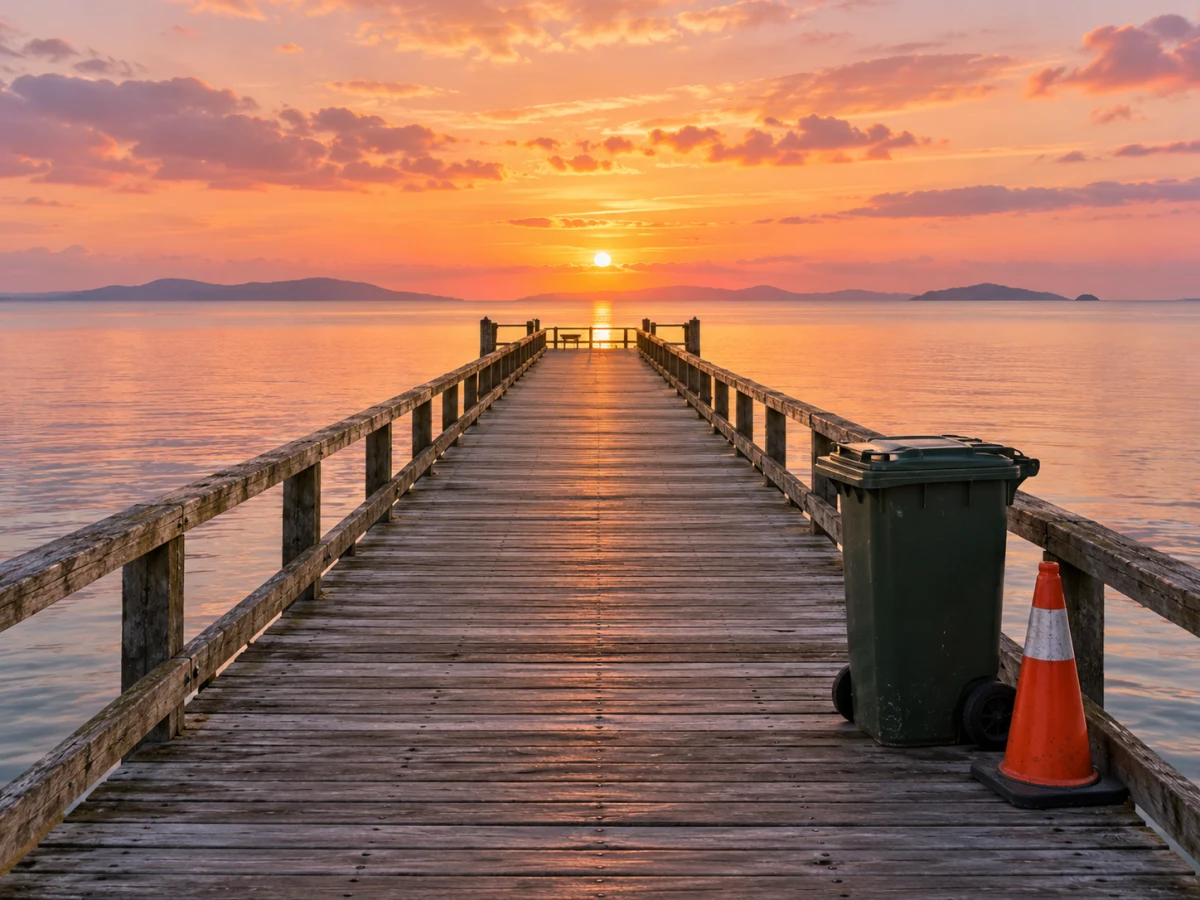
| Bin or cone on a street | Object and its base contact shadow | Street texture continued from both sides |
| Date stamp on a scan | Tight brush over the digits | Clean on plain areas, softer on busy patterns |
| Clutter on a desk | One item per run | Surface grain matched; lettering nearby may change |
Cover the shadow too
An object left behind as a shadow looks worse than the object. Paint over its shadow and any reflection in one mask.
Leave a small margin
Painting a few pixels past the outline removes halos. The soft mask edge blends the fill into the untouched pixels.
Big objects, several passes
For something large, remove it in two runs, each on a part, so the model always has real background nearby to continue.
From brush to finished photo
The model only ever sees what you painted as the area to replace. Everything else is protected twice: in the prompt, and by pasting your original back.
Paint the mask
Use the brush and eraser on your photo, undo a stroke if needed, and adjust brush size for thin or large objects.
The fill is generated
GPT Image 2.5 fills the area with what would plausibly be behind the object; if it is unavailable, Nano Banana 2 takes over automatically.
Your original is put back
In your browser, the untouched pixels outside the mask are restored at full resolution, so only the removed object area differs from your photo.
Scenes where removal struggles
Object removal is guesswork about what was hidden. It is honest to say when that guess is hard.
Repeating patterns
Tiles, fences and text-heavy walls need perfect continuation; small misalignments can show. A tighter mask helps.
People in crowds
Removing one person from a dense crowd means inventing other people behind them, which can look off. Busy scenes work best with smaller removals.
Watermarks and credits
Overlaid watermarks have their own tool with an ownership check. Removing marks from images you don’t own is not allowed.
Object Remover: questions
What can the object remover erase?
People, cars, signs, cables, bins, stains, date stamps and other distractions. It works best when the object sits in front of sky, walls, grass, water or other surfaces that are easy to continue.
Do I need to describe the object?
No. You only brush over it; the removal instruction is fixed. If you want something new in its place instead, use the fix image area tool and describe it.
Will the rest of my photo lose quality?
No. Outside your brush strokes the original pixels are restored at full resolution after the edit, so compression or redrawing only affects the removed area.
How many credits does removing an object cost?
One run is 2 credits at 1K, 3 at 2K and 4 at 4K, however many objects you brushed in that run. Without an account you get one free try per day.
What if the removal looks wrong?
Adjust the mask — include the shadow, add a margin, or split a large object — and run again. If a run fails outright, the credits are refunded automatically.
Is my photo private when I use the object remover?
Uploads are stored privately with EXIF and GPS removed, and only sent to the model through short-lived links. Guest files are deleted after 24 hours; you can delete yours any time from Account → Files.
Related tools
Other AI Edit tools people use alongside this one.
- AI · 2 crAI
Watermark Remover
Clean text and logo overlays from your own images.
- Runs in
- Cloud GPU
- Max upload
- 25 MB
AI Edit - AI · 2 crAI
Fix Image Area
Brush over one spot and describe the fix.
- Runs in
- Cloud GPU
- Max upload
- 25 MB
AI Edit - AI · 2 crPopular
AI Photo Editor
Describe the change you want and watch it happen.
- Runs in
- Cloud GPU
- Max upload
- 25 MB
AI Edit